

iPhone to Samsung (Galaxy)
Easily transfer your data with Smart Switch (cable or iCloud).
Before starting (important)
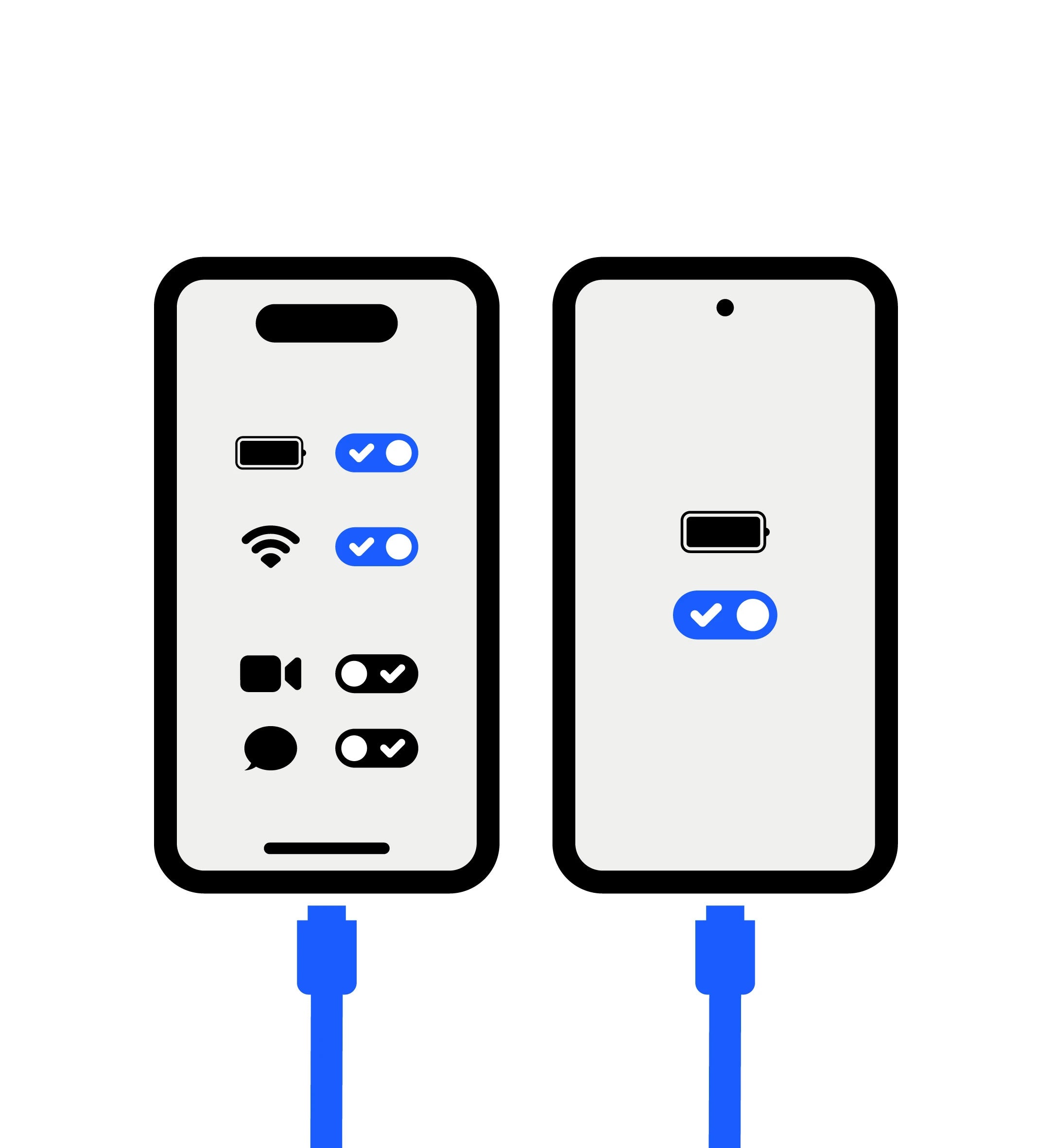
- Charge both phones (ideally plugged in).
- On the iPhone: connect to Wi-Fi.
- Turn off iMessage (and FaceTime) before switching to Samsung to avoid missing texts (SMS/MMS) sent from iPhones.
Turn off iMessage (if you still have the iPhone)
- Put your SIM back into the iPhone (if you have already moved it).
- Settings → Messages → iMessage (turn off)
- Settings → FaceTime → FaceTime (turn off)
If you no longer have the iPhone: Apple allows you to deregister iMessage online.
Method recommended — Smart Switch with cable (often the most complete)
Ideal if you want to transfer as much data as possible (including items that don't always sync via iCloud).
1. On the (new) Samsung: open Smart Switch → Receive data → iPhone/iPad.
2. Connect the 2 devices:
- Lightning to USB-C cable (if your Galaxy is USB-C)
- Or Lightning to USB + USB-OTG adapter (depending on your hardware)
3. On the iPhone: tap Trust and enter your passcode if requested.
4. On the Samsung: tap Next, select what you want to transfer, then tap Transfer.
5. At the end: tap Done on the Samsung and Close on the iPhone.
Data types (cable): Samsung indicates that you can transfer contacts, calendar, messages, notes, call history, bookmarks, as well as photos/videos (DRM-free), documents, voice memos, and certain settings (Wi-Fi, alarms).
Alternative — Smart Switch via iCloud (wireless)
Practical if you cannot plug in both devices, but some data does not transfer via iCloud.
1. On the iPhone: Settings → [your name] → iCloud → Show All then activate what you want to sync (contacts, photos, etc.).
2. On the Samsung: Smart Switch → Receive data → iPhone/iPad → Get data from iCloud instead.
3. Sign in to iCloud (Apple ID). On the iPhone, a code may appear: Allow then enter the code on the Samsung.
4. Choose the data → Transfer.
Data types (iCloud): Samsung lists notably contacts, calendar, notes, call history, bookmarks, photos/videos (DRM-free), documents, voice memos, and certain settings (Wi-Fi, alarms).
Alternative — Smart Switch via iCloud (wireless)
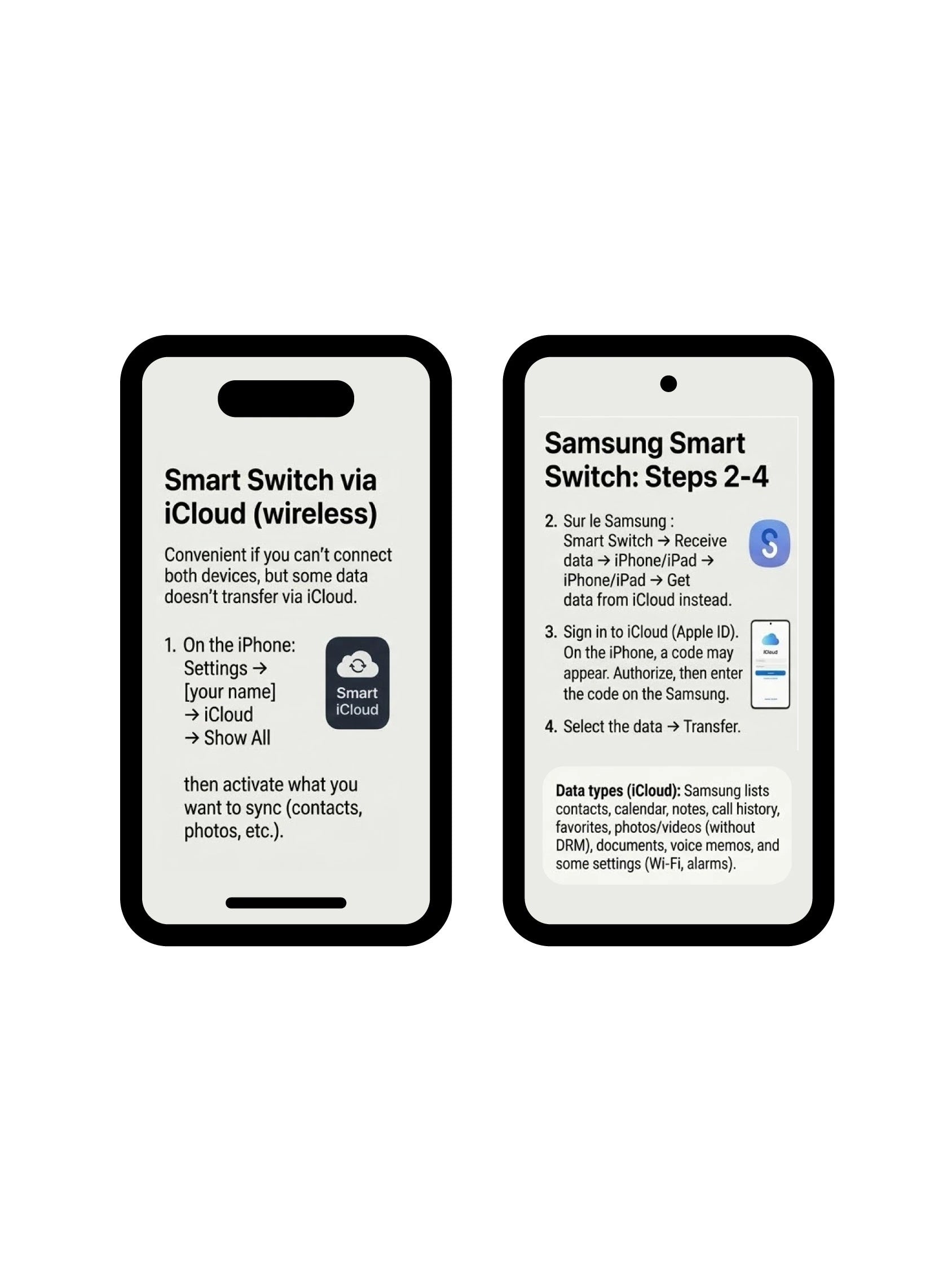
Practical if you cannot plug in both devices, but some data does not transfer via iCloud.
1. On the iPhone: Settings → [your name] → iCloud → Show All then activate what you want to sync (contacts, photos, etc.).
2. On the Samsung: Smart Switch → Receive data → iPhone/iPad → Get data from iCloud instead.
3. Sign in to iCloud (Apple ID). On the iPhone, a code may appear: Allow then enter the code on the Samsung.
4. Choose the data → Transfer.
Data types (iCloud): Samsung lists notably contacts, calendar, notes, call history, bookmarks, photos/videos (DRM-free), documents, voice memos, and certain settings (Wi-Fi, alarms).
FAQ
For most people: Smart Switch with cable (more complete and often more reliable).
Yes: Apple explains that it avoids missing SMS/MMS messages sent from iPhones after the change.
Samsung indicates that transfer via iCloud has limitations (some data does not transfer) — the cable is generally more complete.
Yes: Samsung mentions that you must trust and sometimes enter the unlock code to authorize the transfer.
Samsung specifies that certain music/videos (especially protected/DRM) do not transfer via iCloud; unprotected files may require a copy from a computer.