

iPhone to iPhone
Transfer your apps, photos, and settings with ease—either directly or via iCloud.
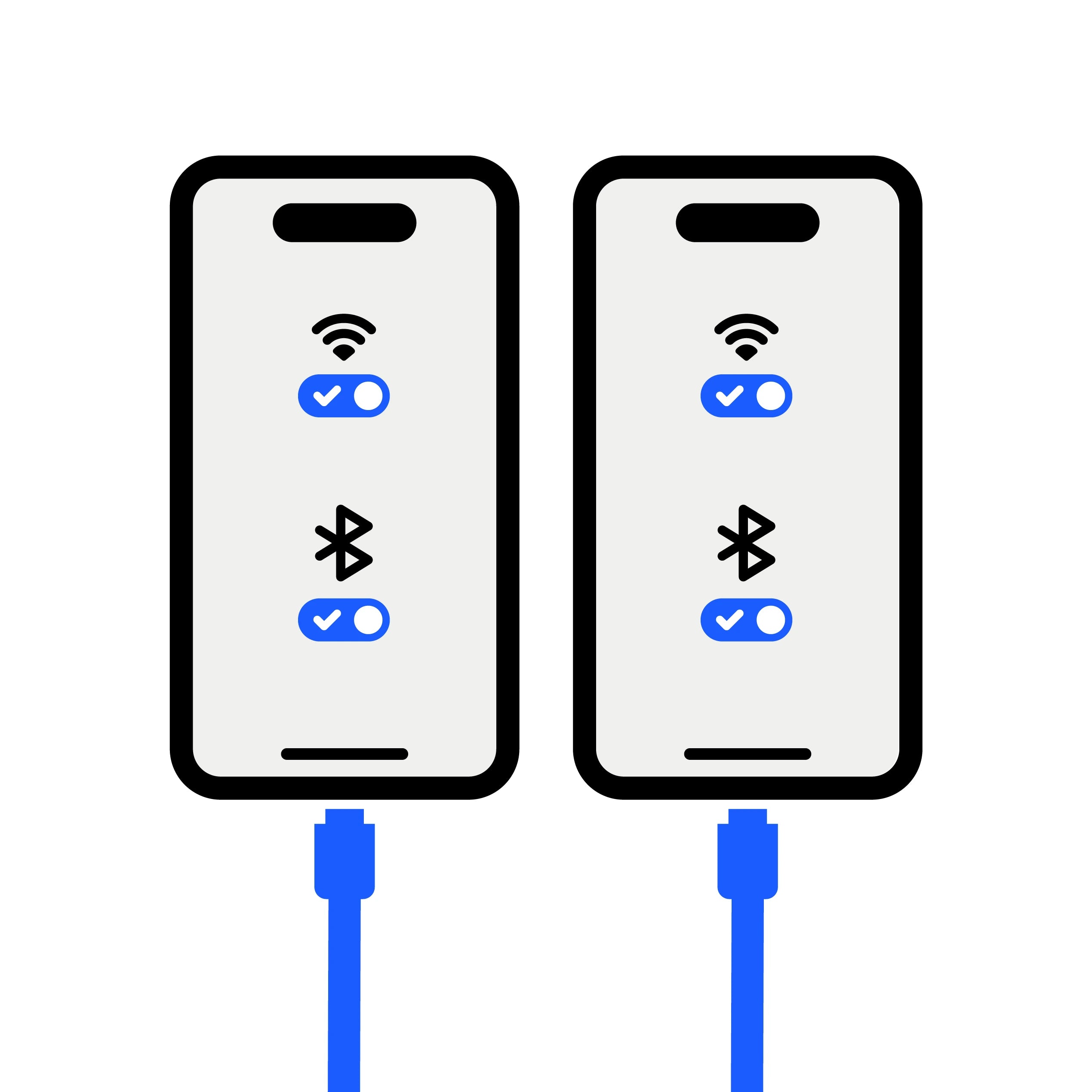
Before starting (important)
- Turn on Wi-Fi and Bluetooth on your old iPhone.
- Ideally, keep both iPhones connected to power during the transfer.
- Keep your passcode and Apple ID (email and password) handy, as you may be prompted for them.
Recommended Method — Quick Start (Direct Wireless Transfer)
1. Turn on your new iPhone and place it near your old one.
2. On your old iPhone, a "Set Up New iPhone" window will appear → tap Continue and follow the on-screen instructions.
- If the window disappears: Restart both iPhones.
3. Connect your new iPhone to Wi-Fi (or your old device's network) and continue.
4. If prompted, activate your cellular service.
5. Set up Face ID or Touch ID.
6. At the "Transfer Your Data" screen, choose your preferred method:
- Download from iCloud: You can start using your iPhone sooner; the rest of your data will download in the background.
- Transfer from iPhone: Wait for the transfer to finish on both devices before using them.
7. Keep both iPhones close together and plugged into power until the process is complete.
Faster option — iPhone to iPhone transfer with cable
iPhone 14 (or older) → iPhone 15 (or newer)
Use a USB-C to Lightning cable, then follow the on-screen steps (Wi-Fi, Face ID/Touch ID, wait for completion).
iPhone 14 (or older) → iPhone 14 (or older)
Use a Lightning to USB 3 Camera Adapter + Lightning to USB cable, then follow the steps.
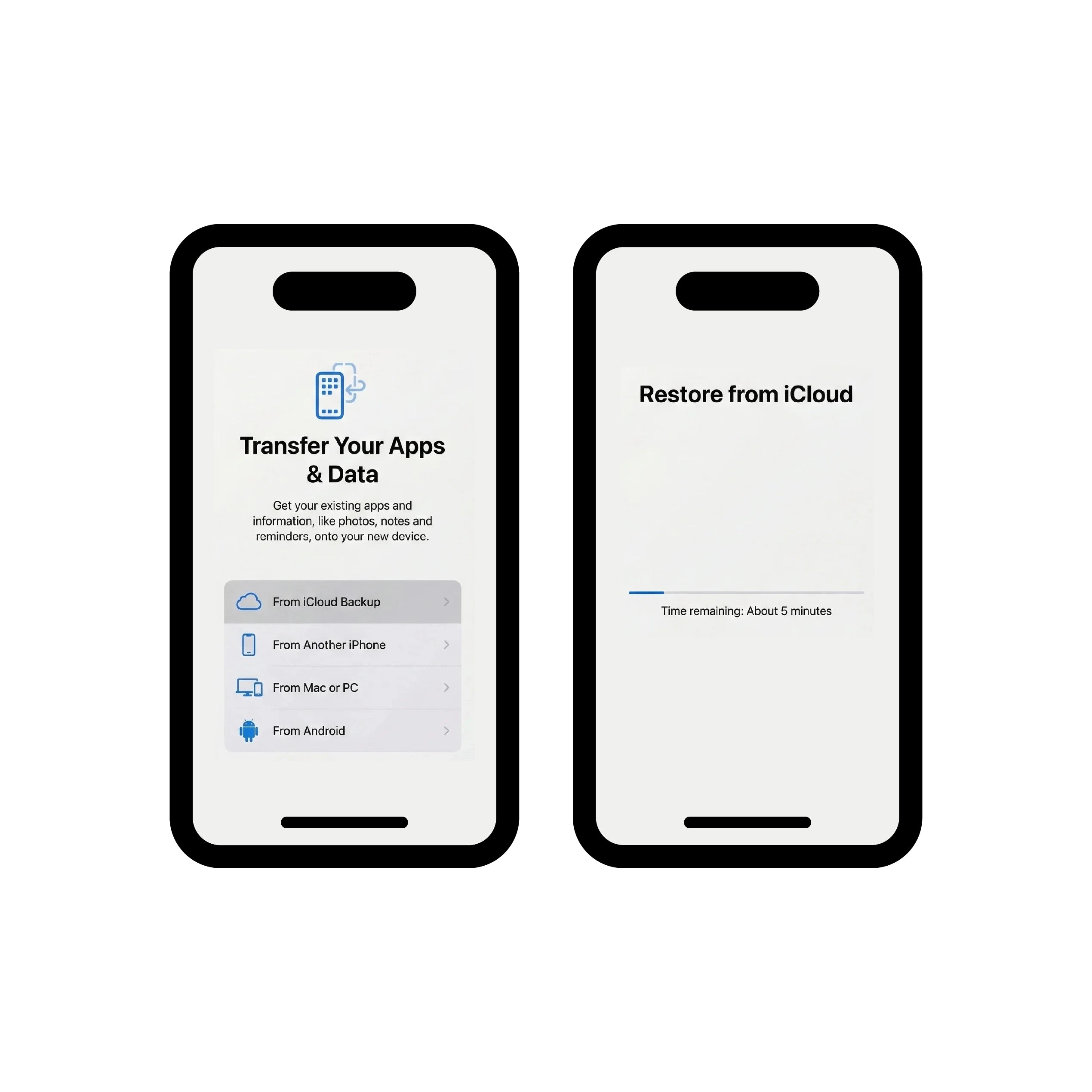
Alternative — Restore from an iCloud backup
1. Turn on the new iPhone → proceed to “Transfer Your Apps & Data”.
2. Tap “From an iCloud Backup” and sign in to your Apple account.
3. Choose the backup (check date and size).
4. Stay on Wi-Fi: if you disconnect too early, progress stops until reconnection.
5. Even after the end, content (apps, photos, music, etc.) may continue to restore in the background: leave the iPhone on Wi-Fi and plugged in as much as possible.
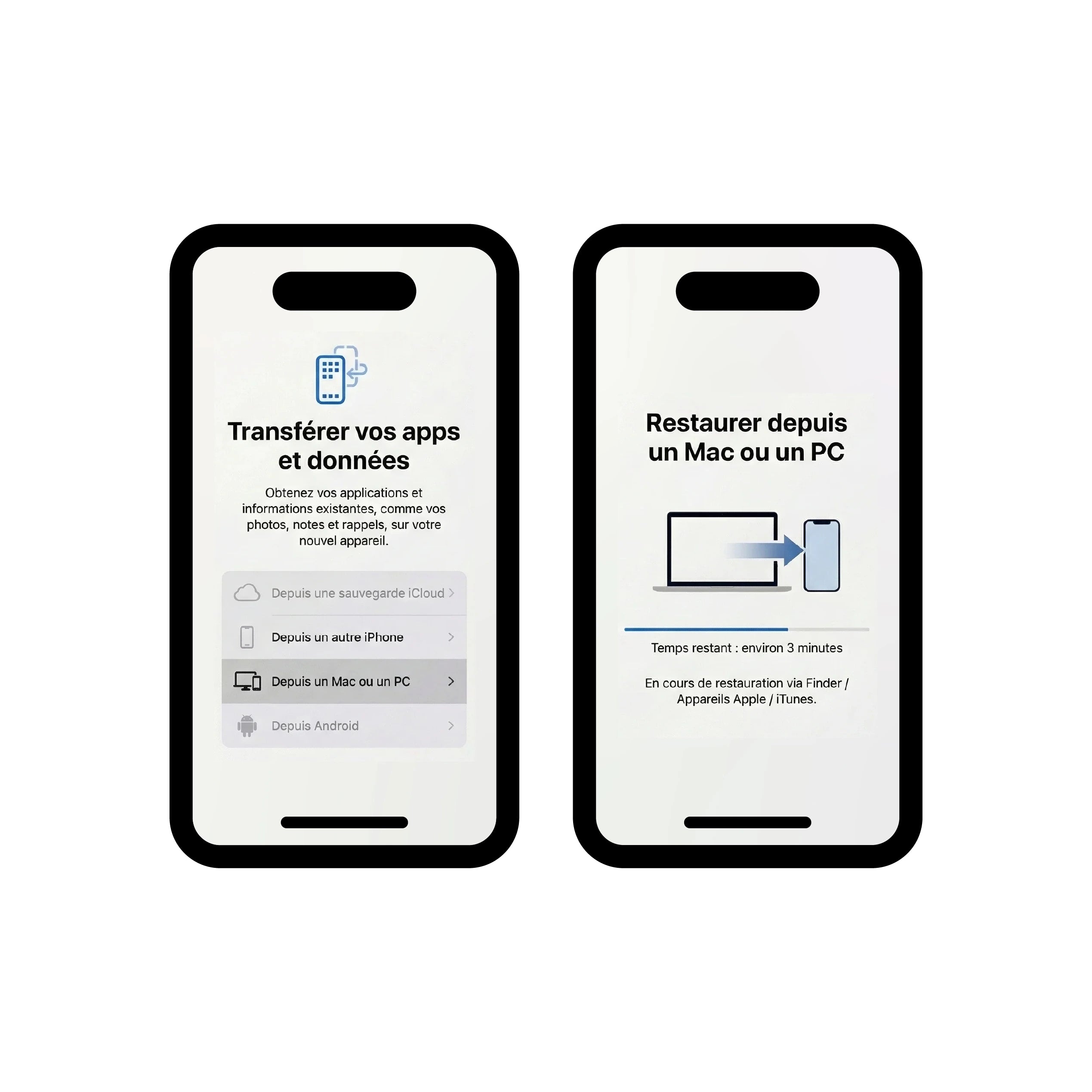
Alternative — Restore from a Mac or PC (Finder / Apple Devices / iTunes)
1. On the new iPhone, at “Apps & Data”, choose “Restore from a Mac or PC”.
2. Plug the iPhone into the computer where the backup is located.
3. Open Finder / Apple Devices / iTunes, select the iPhone and start the restoration (follow instructions, trust, passcode if requested).
If the new iPhone is already set up (you want to start over)
Apple indicates that the device must be erased to return to the “Hello” screen:
• Settings → General → Transfer or Reset iPhone → Erase All Content and Settings.
FAQ
The simplest is Quick Start. Next, choose iCloud if you want to get started quickly, or direct transfer if you prefer to wait and copy everything at once.
It varies according to the network and the amount of data. An iCloud transfer can take from a few minutes to an hour, and the rest can continue in the background for longer.
Apple specifies that Quick Start occupies both devices and, for direct transfer, you must wait for it to finish before using them.
Restart both iPhones and start over by placing them close together.
Stay on Wi-Fi, keep the iPhones close and plugged in. If you leave Wi-Fi during an iCloud restore, progress may stop until reconnection.